

Documentation Index
Fetch the complete documentation index at: https://docs.optidev.ai/llms.txt
Use this file to discover all available pages before exploring further.
What is the Users Tab
The Users tab shows all authenticated users in your OptiDev Cloud project. You can view user details, create new users, send invitations, and manage your application’s user base.Viewing Users
User List
The Users tab displays all registered users in a table with the following information: User Column- Email address, phone number, or “Anonymous User”
- User ID (first 8 characters shown)
- Avatar icon indicating user type
- Shows how the user signed up
- Supported providers: Email, Google, Phone number
- Verified (green with shield icon) - Email or phone confirmed
- Unverified (gray) - Awaiting confirmation
- Date and time the user registered
- Format: “Jan 8, 2026, 11:04 AM”
- Date of most recent login
- Shows “Never” if user hasn’t signed in yet
- Send Magic Link button (email icon) - Send a passwordless login link to the user
- Delete button (trash icon) - Remove user from authentication system
Total Count
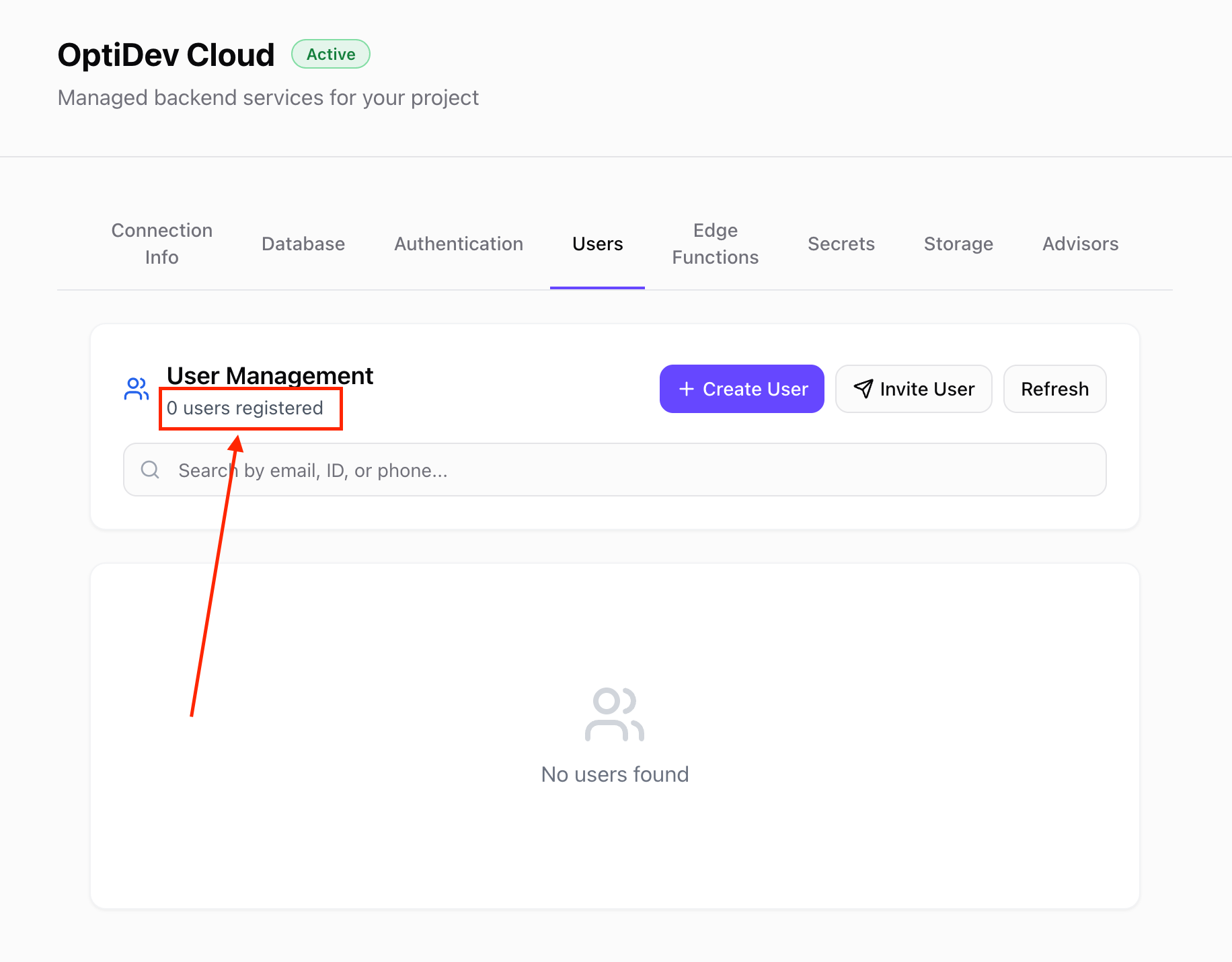
The top section shows your total user count:“5 users registered”Use the Refresh button to reload the list after making changes.
Viewing User Details
Click any row in the user table to see complete user information:User Information
- User: Full email, phone, or “Anonymous”
- User UID: Complete UUID
- Created at: Registration timestamp
- Updated at: Last profile update
- Invited at: When invitation was sent (if applicable)
- Confirmation sent at: When verification email was sent
- Confirmed at: When user verified their email/phone
- Last signed in: Most recent login or “Never”
- SSO: Shows if user signed up via OAuth (Google, etc.)
Login Methods
Shows which authentication methods are enabled for this user: Email- Enabled/Disabled badge
- Shows “Auto-confirmed” if email was verified without user action
- Enabled/Disabled badge
- Shows confirmation status
- Lists active providers (Google, GitHub, etc.)
- Shows enabled status
Searching Users
Use the search bar at the top of the user list to find specific users:- Search by email address
- Search by user ID (full or partial)
- Search by phone number
Creating a New User
To manually create a user account:Step 1: Open Create User Dialog
Click the Create User button at the top of the Users tab.Step 2: Fill in User Details
Required Fields:- Email - User’s email address
- Password - Minimum 6 characters
- Phone - Phone number (format: +1234567890)
- Auto-confirm email - Check to skip email verification (checked by default)
Step 3: Create the User
Click Create User to add the account. The new user will appear in your user list immediately. If “Auto-confirm email” was checked, the user can sign in right away without verifying their email.Created users receive the password you set. Make sure to communicate it securely to the user, or send them an invitation instead (see below).
Inviting Users
Instead of creating users manually, you can send email invitations that let users set their own password.Step 1: Open Invite User Dialog
Click the Invite User button at the top of the Users tab.Step 2: Enter Invitation Details
Required Field:- Email - Email address to send the invitation to
Step 3: Send the Invitation
Click Send Invitation. The user receives an email with a signup link. When they click it, they can:- Set their own password
- Be redirected to your specified URL
Deleting Users
To permanently remove a user account:Step 1: Click Delete Icon
In the Actions column of the user table, click the trash icon for the user you want to delete.Step 2: Confirm Deletion
A confirmation dialog appears showing:- User’s email, phone, or “Anonymous User”
- Full user ID
- Warning: “This action cannot be undone”
Step 3: Delete the User
Click the red Delete User button to permanently remove the account.Common Use Cases
Manually Creating Test Users
For development and testing:- Click Create User
- Use test email (e.g.,
test@example.com) - Set simple password (e.g.,
test123) - Check Auto-confirm email
- Click Create User
Inviting Team Members
For production applications:- Click Invite User
- Enter team member’s email
- Click Send Invitation
User Authentication Flow
Understanding how users appear in this tab:Email/Password Signup
- User registers via your app’s signup form
- User appears in Users tab as “Unverified”
- User receives confirmation email
- User clicks link to verify
- Status changes to “Verified”
OAuth Signup (Google, GitHub, etc.)
- User clicks “Sign in with Google” in your app
- User authenticates with Google
- User appears in Users tab immediately as “Verified”
- Provider shows as “Google” (or other OAuth provider)
Invitation Flow
- Admin sends invitation via Users tab
- User receives email with signup link
- User clicks link and sets password
- User appears in Users tab as “Verified”
Integration with Auth Settings
The Users tab works together with the Auth tab settings: When you enable Email provider:- New users can sign up with email/password
- They appear in Users tab with provider “Email”
- New users can sign up with Google
- They appear in Users tab with provider “Google”
- Existing users remain in the Users tab
- No new users can register
- You can still manually create users or send invitations
For Developers
Technical Reference
Technical Reference
API Endpoints
List UsersUser Object Structure
User Metadata
app_metadata- System-level metadata
- Contains provider information
- Set automatically by OptiDev Cloud
- Read-only in most cases
- Custom user data for your application
- Can be set during user creation
- Editable via API
- Examples: profile picture URL, preferences, onboarding status
Supabase SDK Usage
OptiDev Cloud uses the official Supabase JavaScript SDK for user management:Security Considerations
Authentication- All API calls require valid Firebase authentication token
- User management requires admin privileges
- Minimum 6 characters
- Should enforce stronger requirements in production
- Consider using password strength validation in your app
- User passwords are never returned by the API
- Sensitive data should be stored encrypted in user_metadata
- Follow GDPR/privacy regulations for user data
Rate Limits
Be aware of potential rate limits:- User creation: ~60 requests per minute
- User listing: ~100 requests per minute
- User deletion: ~60 requests per minute
- Email sending: 2 emails per hour