

You’ll need an Admin role in your workspace to publish to OptiSigns. If you’re a member of an invited workspace, ask your workspace admin to grant you admin access.
What is OptiSigns Integration?
OptiSigns is a digital signage platform that powers screens in offices, stores, restaurants, and public spaces. With OptiDev’s integration, you can build an app and display it directly on any OptiSigns-connected screen. Perfect for:- Office dashboards showing KPIs and metrics
- Retail displays with promotions and product info
- Restaurant menus that update in real-time
- Lobby directories and wayfinding
- Kiosk applications for self-service
How to Publish
Prerequisites
- An OptiSigns account with screens set up
- A published OptiDev app (the system will prompt you to publish if needed)
Step-by-Step
1
Open the Publish Menu
In your project editor, click the Published button in the top toolbar, then select Publish to OptiSigns from the dropdown.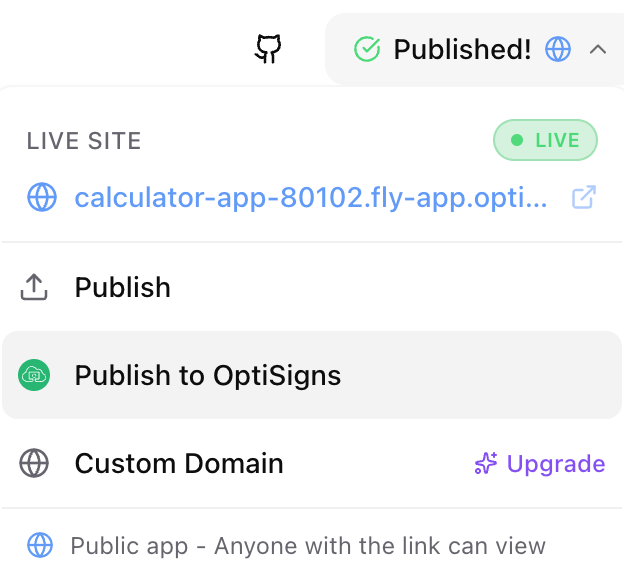
If your app isn’t published yet, you’ll be prompted to publish first. Choose your visibility setting and click Publish. The OptiSigns flow continues automatically once deployment completes.
2
Generate API Key (first time only)
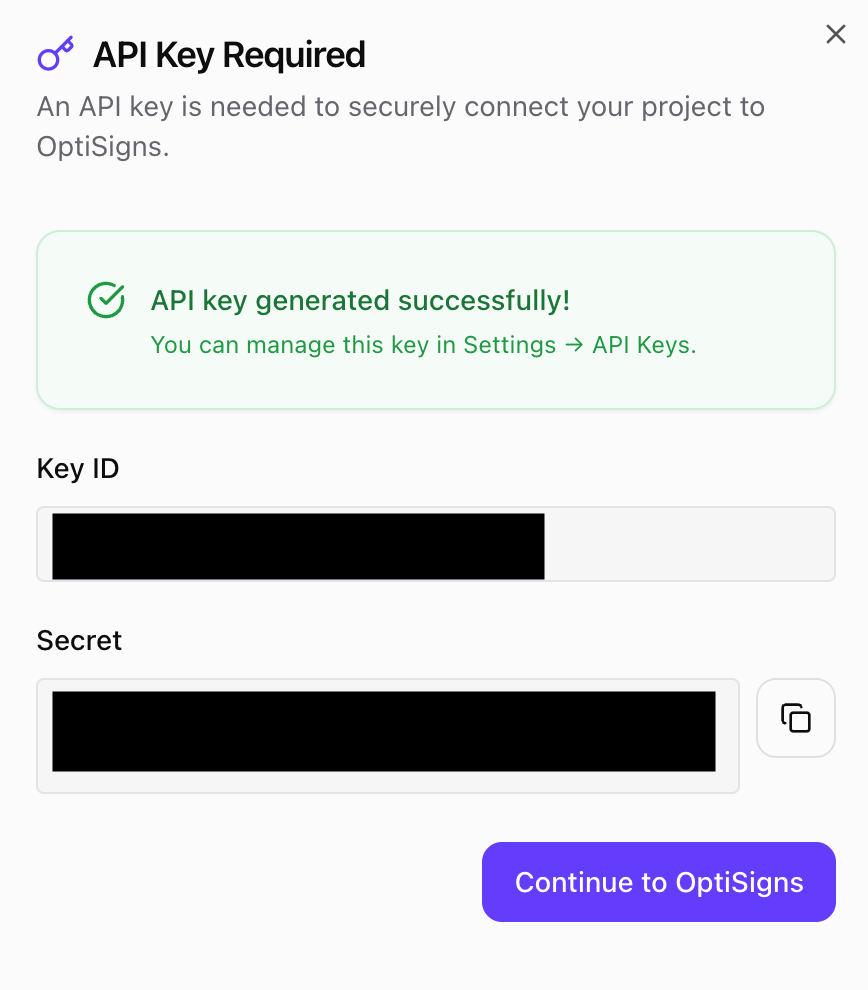
On first use, you’ll need to generate a workspace API key. Click Generate Key to create your secure key.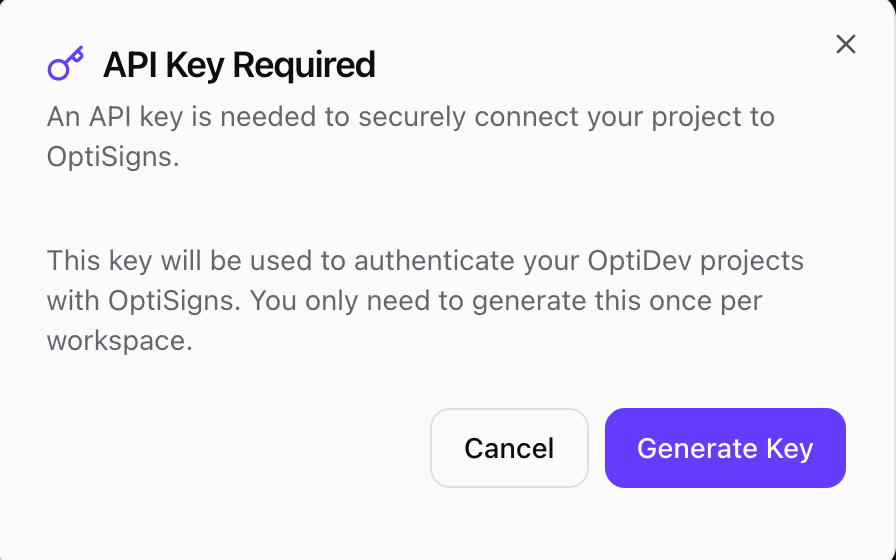
3
Select Folder
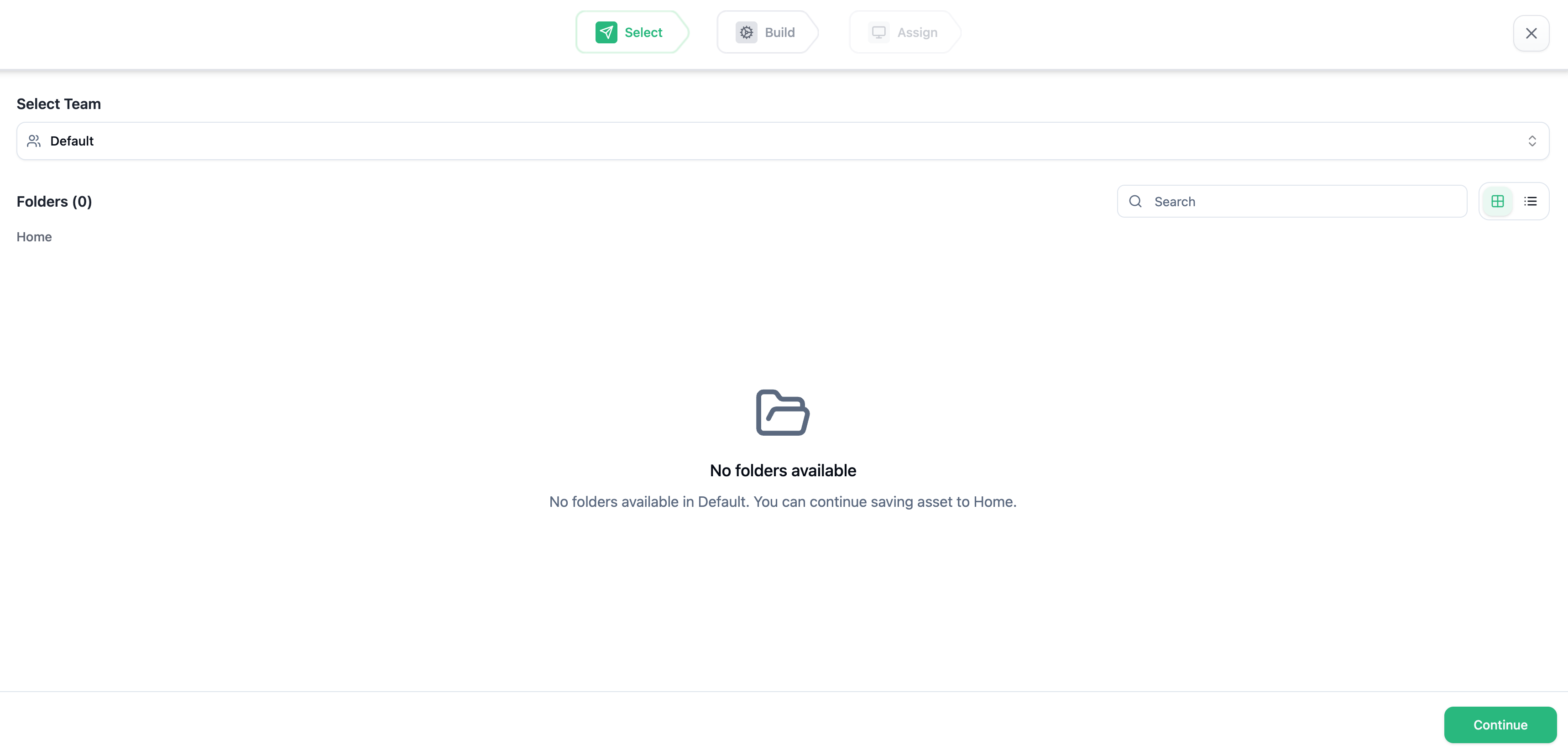
The OptiSigns picker opens with three steps: Select, Build, and Assign.
- Choose your team from the dropdown
- Select a folder to save your app as an asset
-
Click Continue to proceed
4
Configure Your App
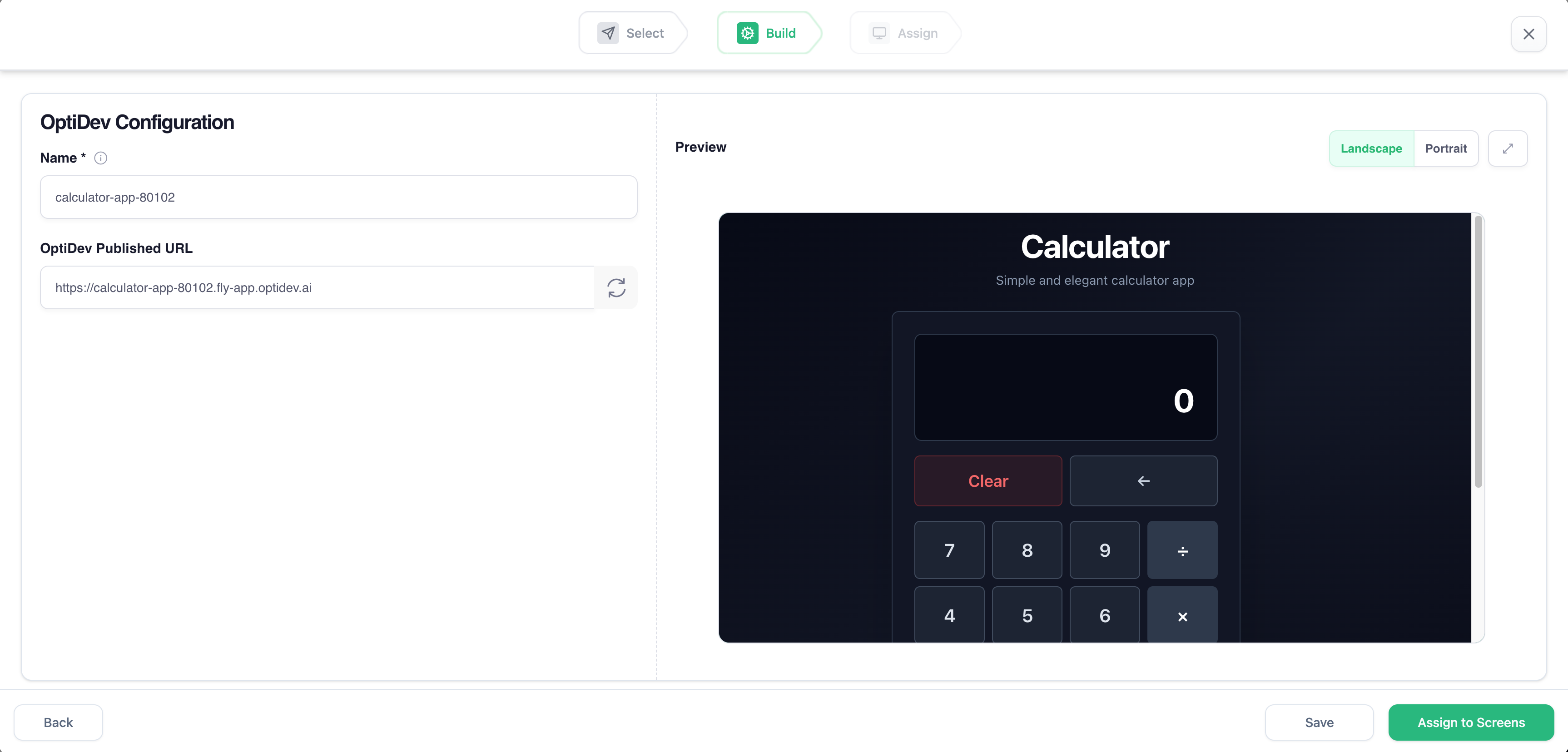
In the Build step, configure how your app appears in OptiSigns:
- Name - Give your app a recognizable name
- Preview - See how your app looks in landscape or portrait mode
-
Click Assign to Screens to continue, or Save to assign later
5
Assign to Screens
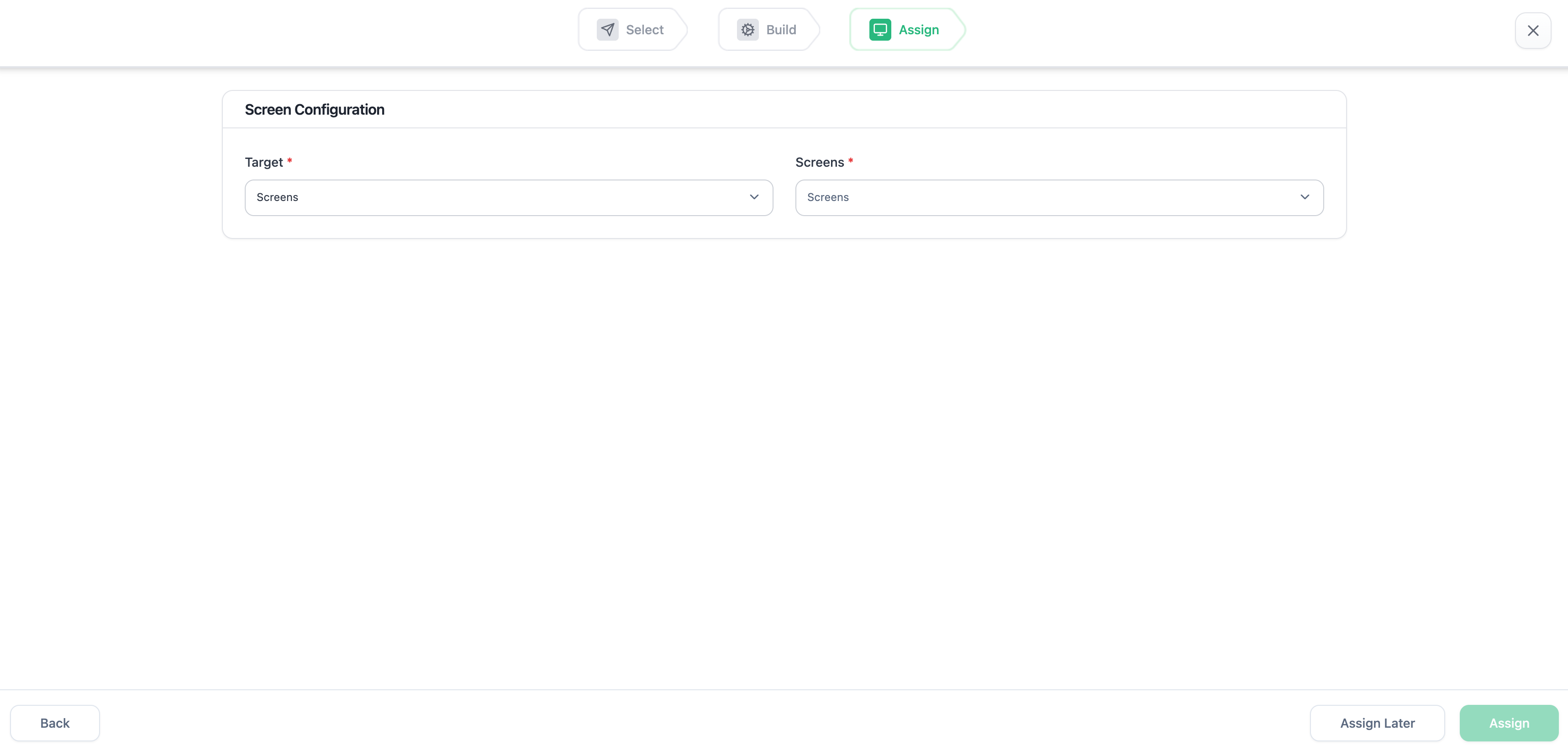
In the Assign step, select which screens display your app:
- Target - Choose to assign to screens or screen groups
- Screens - Select the specific screens
-
Click Assign to push your app to screens, or Assign Later to do this from the OptiSigns dashboard
6
Done!
Your app is now saved as an asset in OptiSigns and assigned to your selected screens. The app will appear on the screens within seconds.