> ## Documentation Index
> Fetch the complete documentation index at: https://docs.optidev.ai/llms.txt
> Use this file to discover all available pages before exploring further.
# Storage
> Store and serve files like images, documents, and videos
## What is Storage
Storage is where your app keeps files - profile pictures, uploaded documents, product images, videos, and any other files your users need.
OptiDev Cloud Storage gives you:
* **Fast global delivery** - Files are served through a CDN, so they load quickly worldwide
* **Flexible access control** - Make files public for everyone or private for specific users
* **Organized structure** - Group files into "buckets" for different purposes
* **Upload restrictions** - Set file size limits and allowed file types per bucket
***
## Understanding Buckets
Files are organized into **buckets** - think of them like folders for different types of content.
### Public vs Private Buckets
**Public buckets:**
* Anyone with the URL can view the files
* Good for: profile pictures, product images, public assets
* Files have permanent, shareable URLs
**Private buckets:**
* Only authorized users can access files
* Good for: personal documents, invoices, sensitive data
* Files require special "signed URLs" with expiration times
***
## Using Storage with OptiDev Agent
The easiest way to add file storage to your app is to describe what you need.
### Example: Profile Pictures
> *"Add profile picture upload to my user settings page and display them next to usernames"*
OptiDev Agent will:
1. Create a storage bucket for avatars
2. Add an upload component to your settings page
3. Save the image URL to the user's profile
4. Display the picture throughout your app
### Example: Document Uploads
> *"Let users upload PDF documents to their account with a download button for each file"*
OptiDev Agent will:
1. Set up a private storage bucket for documents
2. Create an upload interface
3. Build a file list with download buttons
4. Set up access policies so users only see their own files
### Example: Public Gallery
> *"Create a public image gallery where anyone can see the images but only authenticated users can upload"*
OptiDev Agent will:
1. Create a public storage bucket for the gallery
2. Add an image upload component for logged-in users
3. Display a gallery view visible to everyone
4. Set up policies for public read and authenticated upload
***
## Managing Buckets in the Dashboard
### Viewing Your Buckets
1. Go to the **Storage** tab in OptiDev Cloud
2. You'll see a grid of bucket cards
3. Each card shows the bucket name and a **Public** or **Private** badge
### Creating a New Bucket
1. Click the **New bucket** button
2. Enter a bucket name (this cannot be changed later)
3. Choose visibility:
* **Public** - Anyone can view files
* **Private** - Only authorized users can access
4. Optionally set restrictions (see Bucket Settings below)
5. Click **Create bucket**
### Bucket Settings
Click any bucket to open it, then click the **Edit bucket** dropdown and select **Bucket settings** to configure:
**File Size Limit**
* Toggle on to restrict maximum file size
* Enter the limit in megabytes (MB)
* Uploads exceeding this size will be rejected
* Default is 50 MB if not set
**Allowed File Types**
* Toggle on to restrict which file types can be uploaded
* Enter MIME types separated by commas
* Examples: `image/png, image/jpeg` or `application/pdf`
Bucket settings help prevent users from uploading inappropriate or oversized files. Set these before adding upload functionality to your app.
### Emptying or Deleting a Bucket
1. Click the bucket you want to modify
2. Click the **Edit bucket** dropdown
3. Select **Empty bucket** to delete all files but keep the bucket, or **Delete bucket** to remove everything
4. Confirm the action
Both actions are permanent and cannot be undone.
***
## Browsing Files in the Dashboard
Click any bucket to view its contents:
* **Breadcrumb navigation** - Shows your current location (e.g., `avatars / users / profile-pics`)
* **File table** - Lists all files and folders with Name, Size, and Modified date
* **Folder navigation** - Click any folder to enter it
* **Back button** - Return to the bucket list
### Uploading Files
1. Click a bucket to open it
2. Navigate to the folder where you want to upload (or stay at root)
3. Click the **Upload** button
4. Select files from your computer
5. Files upload directly to storage
### Deleting Files
1. Find the file you want to delete
2. Click the **trash icon** next to the file
3. Confirm the deletion
***
## Viewing Storage Policies
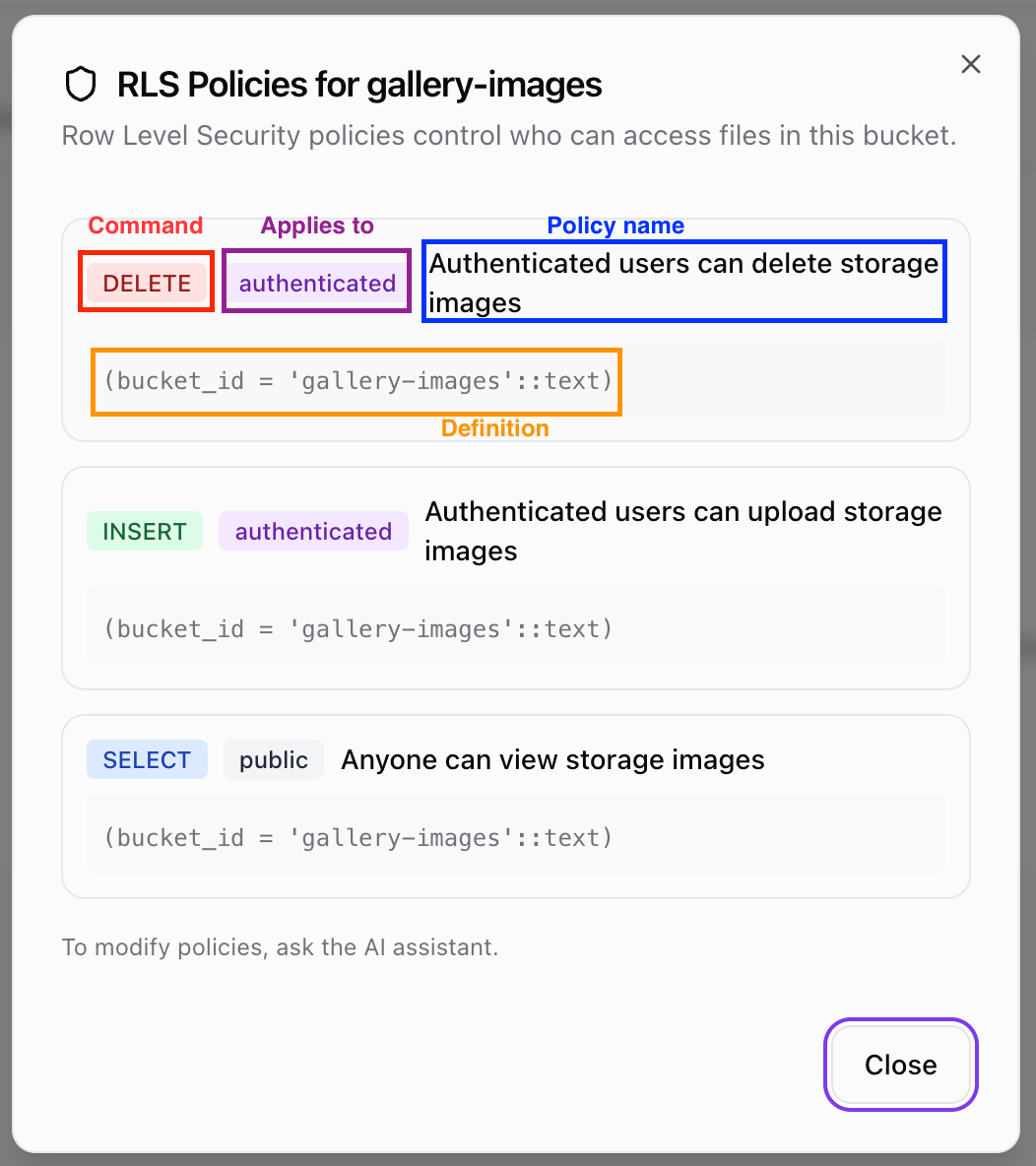
Storage policies (Row Level Security) control who can access files in each bucket.
### Viewing Policies
1. Click a bucket to open it
2. Click the **Policies** button
3. A modal shows all security rules for this bucket
### Understanding Policies
Each policy shows:
* **Policy name** - Descriptive name for the rule
* **Command** - What action it controls (SELECT, INSERT, DELETE, etc.)
* **Applies to** - Who the rule affects:
* `public` - Anyone, including users who are not logged in
* `authenticated` - Only users who are logged in
* Other custom roles as defined in your app
* **Definition** - The actual security condition
 ### Modifying Policies
Policies cannot be edited directly in the dashboard. To create or change policies, describe the access rules you want to OptiDev Agent:
> *"Only let authenticated users upload files to the documents bucket"*
> *"Users should only be able to see and delete their own files"*
> *"Make the avatars bucket publicly readable but only allow uploads from logged-in users"*
OptiDev Agent will create the appropriate Row Level Security policies for you.
***
## Storage Limits and Quotas
OptiDev Cloud includes storage with your plan:
* Files are stored securely with automatic backups
* Large files are handled efficiently
* No per-file charges for standard usage
Check your plan details for specific storage limits.
***
## For Developers
### Supabase Storage Client
Upload files using the Supabase JavaScript client:
```typescript theme={null}
const { data, error } = await supabase.storage
.from('avatars')
.upload('user-123.jpg', file)
```
### Getting Public URLs
```typescript theme={null}
const { data } = supabase.storage
.from('avatars')
.getPublicUrl('user-123.jpg')
// data.publicUrl contains the URL
```
### Creating Signed URLs
For private files with expiration:
```typescript theme={null}
const { data, error } = await supabase.storage
.from('documents')
.createSignedUrl('invoice.pdf', 3600) // expires in 1 hour
// data.signedUrl contains the temporary URL
```
### Listing Files
```typescript theme={null}
const { data, error } = await supabase.storage
.from('documents')
.list('user-123/') // list files in a folder
```
### Deleting Files
```typescript theme={null}
const { error } = await supabase.storage
.from('avatars')
.remove(['user-123.jpg'])
```
### Bucket Configuration
When creating buckets programmatically, you can set:
```typescript theme={null}
{
name: 'documents',
public: false,
fileSizeLimit: 10485760, // 10MB in bytes
allowedMimeTypes: ['application/pdf', 'image/png', 'image/jpeg']
}
```
### Row Level Security Policies
Control access with RLS policies on the `storage.objects` table. Common patterns:
**Public read access:**
```sql theme={null}
CREATE POLICY "Public read" ON storage.objects
FOR SELECT USING (bucket_id = 'avatars');
```
**Authenticated uploads:**
```sql theme={null}
CREATE POLICY "Auth upload" ON storage.objects
FOR INSERT WITH CHECK (
bucket_id = 'documents'
AND auth.role() = 'authenticated'
);
```
**Per-user isolation:**
```sql theme={null}
CREATE POLICY "User files" ON storage.objects
FOR ALL USING (
bucket_id = 'documents'
AND auth.uid()::text = (storage.foldername(name))[1]
);
```
This requires files to be stored as `{user_id}/filename.ext`.
Ask OptiDev Agent to set up RLS policies:
> *"Only let users access their own files in the documents bucket"*
### Modifying Policies
Policies cannot be edited directly in the dashboard. To create or change policies, describe the access rules you want to OptiDev Agent:
> *"Only let authenticated users upload files to the documents bucket"*
> *"Users should only be able to see and delete their own files"*
> *"Make the avatars bucket publicly readable but only allow uploads from logged-in users"*
OptiDev Agent will create the appropriate Row Level Security policies for you.
***
## Storage Limits and Quotas
OptiDev Cloud includes storage with your plan:
* Files are stored securely with automatic backups
* Large files are handled efficiently
* No per-file charges for standard usage
Check your plan details for specific storage limits.
***
## For Developers
### Supabase Storage Client
Upload files using the Supabase JavaScript client:
```typescript theme={null}
const { data, error } = await supabase.storage
.from('avatars')
.upload('user-123.jpg', file)
```
### Getting Public URLs
```typescript theme={null}
const { data } = supabase.storage
.from('avatars')
.getPublicUrl('user-123.jpg')
// data.publicUrl contains the URL
```
### Creating Signed URLs
For private files with expiration:
```typescript theme={null}
const { data, error } = await supabase.storage
.from('documents')
.createSignedUrl('invoice.pdf', 3600) // expires in 1 hour
// data.signedUrl contains the temporary URL
```
### Listing Files
```typescript theme={null}
const { data, error } = await supabase.storage
.from('documents')
.list('user-123/') // list files in a folder
```
### Deleting Files
```typescript theme={null}
const { error } = await supabase.storage
.from('avatars')
.remove(['user-123.jpg'])
```
### Bucket Configuration
When creating buckets programmatically, you can set:
```typescript theme={null}
{
name: 'documents',
public: false,
fileSizeLimit: 10485760, // 10MB in bytes
allowedMimeTypes: ['application/pdf', 'image/png', 'image/jpeg']
}
```
### Row Level Security Policies
Control access with RLS policies on the `storage.objects` table. Common patterns:
**Public read access:**
```sql theme={null}
CREATE POLICY "Public read" ON storage.objects
FOR SELECT USING (bucket_id = 'avatars');
```
**Authenticated uploads:**
```sql theme={null}
CREATE POLICY "Auth upload" ON storage.objects
FOR INSERT WITH CHECK (
bucket_id = 'documents'
AND auth.role() = 'authenticated'
);
```
**Per-user isolation:**
```sql theme={null}
CREATE POLICY "User files" ON storage.objects
FOR ALL USING (
bucket_id = 'documents'
AND auth.uid()::text = (storage.foldername(name))[1]
);
```
This requires files to be stored as `{user_id}/filename.ext`.
Ask OptiDev Agent to set up RLS policies:
> *"Only let users access their own files in the documents bucket"*