> ## Documentation Index
> Fetch the complete documentation index at: https://docs.optidev.ai/llms.txt
> Use this file to discover all available pages before exploring further.
# How to Use
> Getting started with OptiDev Cloud
## What is OptiDev Cloud
OptiDev Cloud is a ready-to-use backend for your app. It gives you everything you need to build real applications:
* **Database** - Store and organize your app's data (user profiles, orders, messages, etc.)
* **Authentication** - Let users create accounts and log in securely
* **Edge Functions** - Run server-side code for things like payment processing or sending emails
* **Secrets** - Securely manage environment variables and API keys
* **Storage** - Store files like images, documents, and videos
* **Advisors** - Get security and performance recommendations
The best part? You don't need to set up servers or manage infrastructure. OptiDev Cloud is powered by Supabase, giving you production-grade PostgreSQL and infrastructure without any setup. Just activate OptiDev Cloud and start building.
### Works with OptiDev Agent
OptiDev Agent understands OptiDev Cloud automatically. You can simply describe what you need:
* *"Create a table to store customer orders with name, email, and order total"*
* *"Add user login to my app"*
* *"Create an API endpoint that connects to Stripe for payments"*
* *"Set up file upload for profile pictures"*
OptiDev Agent will create the tables, set up authentication, write the functions, and deploy everything for you.
***
## Activating OptiDev Cloud
### Step 1: Open OptiDev Cloud
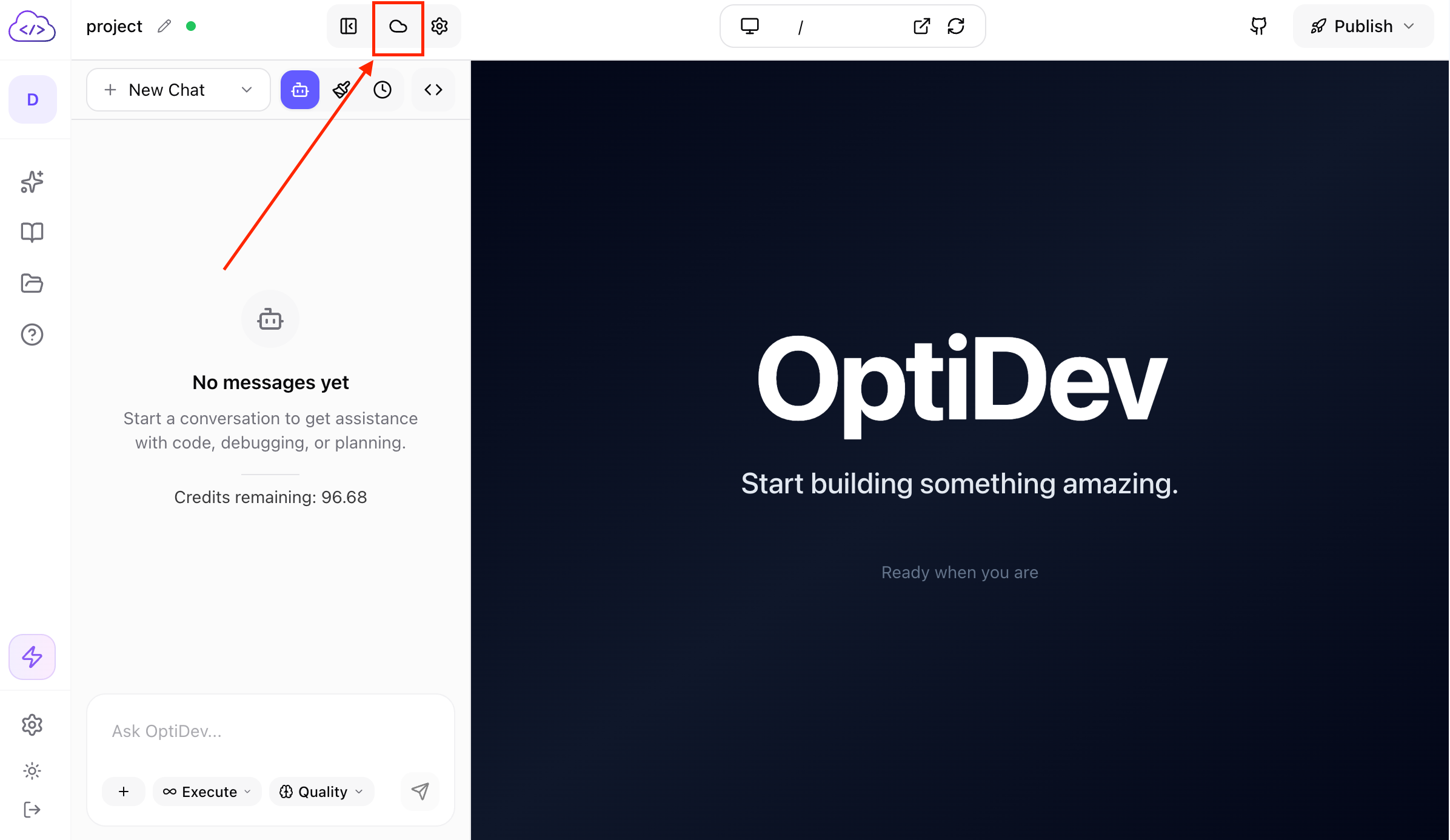
In your project, click the **OptiDev Cloud** tab in the left sidebar (cloud icon).
 ### Step 2: Choose a Region
Select a region closest to where your users are located:
| Region | Best for |
| ------------------------ | ----------------- |
| US East (Ohio) | North America |
| EU Central (Frankfurt) | Europe |
| AP Southeast (Singapore) | Asia |
| AP Southeast (Sydney) | Australia/Oceania |
Choosing a closer region means faster response times for your users.
### Step 3: Activate
Click the **Activate OptiDev Cloud** button. You'll see a progress bar while your backend is being set up.
**Instant Activation:** OptiDev Cloud uses a warm pool system that pre-provisions resources, so activation typically completes in under a second (compared to 2-3 minutes for traditional backends). The progress bar shows elapsed time and updates every few seconds.
When complete, you'll see a green **Active** badge and the dashboard will load with all tabs ready to use.
Once activated, OptiDev Cloud is ready to use immediately. OptiDev Agent can start creating tables, functions, and storage buckets right away.
***
## The OptiDev Cloud Dashboard
After activation, you'll see **8 tabs** for managing your backend:
### Connection Info
Access your API credentials and database connection details:
* **API URL** - Your secure gateway endpoint for API calls
* **Publishable Key** - Public API key for frontend code
* **Database Connection** - PostgreSQL connection strings in 9 formats
* **Reset Password** - Generate a new database password
Click the copy icon to copy any value to your clipboard.
[Learn more about Connection Info →](/optidev-cloud/connection-info)
### Database
Browse and query your data with a full-featured SQL editor:
* **Table List** - See all your tables in the left sidebar (only public schema tables are shown)
* **SQL Editor** - Monaco-powered editor with syntax highlighting
* **Click to Query** - Click any table name to instantly view its data (first 10 rows)
* **Query Results** - View results in a table with row count display
* **Export Data** - Download results as CSV, JSON, or XLSX
The SQL editor supports multi-line queries and shows null values, objects, and strings with proper formatting.
[Learn more about Database →](/optidev-cloud/database)
### Auth
Manage user authentication with multiple sign-in methods. Email/Password is enabled by default.
Key features:
* **Sign-in Providers** - Enable Email, Phone (SMS), or Google authentication
* **Auth Settings** - Configure Site URL, allowed redirect URLs, and signup options
* **User Signup Controls** - Allow/disable new signups, enable anonymous users
[Learn more about Auth →](/optidev-cloud/auth)
### Users
View and manage registered users in your app.
Key features:
* **User List** - Search and browse all users with pagination
* **Create Users** - Manually create user accounts
* **Invite Users** - Send email invitations for self-registration
* **Delete Users** - Remove user accounts
[Learn more about Users →](/optidev-cloud/users)
### Edge Functions
Run server-side code for APIs, integrations, and background tasks.
Key features:
* **Workspace Functions** - Functions in your code, ready to deploy
* **Deployed Functions** - Functions running on OptiDev Cloud
* **One-click Deploy** - Deploy functions directly from the dashboard
* **Testing Tools** - Test functions with custom requests before connecting to your app
[Learn more about Edge Functions →](/optidev-cloud/edge-functions)
### Secrets
Securely store API keys and environment variables for your Edge Functions.
Key features:
* **Write-Only Security** - Secret values can never be retrieved after saving
* **Bulk Operations** - Add multiple secrets at once before saving
* **Instant Access** - Secrets are immediately available in Edge Functions via `Deno.env.get()`
[Learn more about Secrets →](/optidev-cloud/secrets)
### Storage
Manage file storage with buckets for images, documents, and videos. The Storage tab shows all your buckets with public/private badges.
Key features:
* Create buckets with file size limits and MIME type restrictions
* Browse files with folder navigation
* Upload files directly from your computer
* View and manage Row Level Security (RLS) policies
[Learn more about Storage →](/optidev-cloud/storage)
### Advisors
Automatically scan your database for security vulnerabilities and performance issues:
* **Security checks** - Missing Row Level Security, exposed data, weak access policies
* **Performance checks** - Missing indexes, slow queries, inefficient configurations
* **Severity filtering** - View by ERROR (critical), WARN (important), or INFO (suggestions)
* **One-click remediation** - Copy SQL fixes directly from issue details
Click any issue to see full details including affected tables and remediation SQL. OptiDev Agent can also fix many issues automatically.
[Learn more about Advisors →](/optidev-cloud/advisors)
***
## Using OptiDev Agent with OptiDev Cloud
The easiest way to work with OptiDev Cloud is through OptiDev Agent. Just describe what you need in plain language.
### Creating Tables
Tell OptiDev Agent what data you want to store:
> *"Create a products table with name, description, price, and image URL"*
OptiDev Agent will:
1. Create the table with the right column types
2. Set up the database schema
3. Show you the table in your dashboard
### Adding Authentication
Ask OptiDev Agent to add login:
> *"Add user authentication to my app with email and Google sign-in"*
OptiDev Agent will:
1. Enable the auth providers
2. Add sign-in forms to your app
3. Connect everything together
### Creating API Endpoints
Describe the functionality you need:
> *"Create an API endpoint that accepts payment with Stripe and saves the order to the database"*
OptiDev Agent will:
1. Create an Edge Function with the Stripe integration
2. Deploy it to OptiDev Cloud
3. Connect it to your frontend
### Working with Storage
Ask OptiDev Agent to set up file storage:
> *"Add profile picture upload to user settings and display them next to usernames"*
[Learn more about Storage →](/optidev-cloud/storage)
### Managing Secrets
Request secure environment variable storage:
> *"Store my Stripe API key securely so I can use it in Edge Functions"*
OptiDev Agent will:
1. Create a secret with your API key
2. Update your Edge Function code to use `Deno.env.get('STRIPE_API_KEY')`
3. Ensure the secret is never exposed in your frontend
### What OptiDev Agent Can Do
OptiDev Agent has access to **20 specialized tools** for OptiDev Cloud:
**Database (2 tools)**
* Query database via PostgREST API
* Execute DDL SQL for schema changes and RLS policies
**Authentication (1 tool)**
* List and manage authenticated users
**Edge Functions (3 tools)**
* List deployed functions
* Deploy functions from workspace
* Get function source code
**Storage (7 tools)**
* List, create, update, and delete buckets
* Upload files with presigned URLs
* List and delete files
* Browse folders with prefix filtering
**Secrets (3 tools)**
* List secrets (names and digests only)
* Create write-only secrets
* Delete secrets in bulk
**Debugging (2 tools)**
* Fetch service logs (api, postgres, edge-function, auth, storage, realtime)
* Get security and performance advisor recommendations
**Project (1 tool)**
* Get project info and activation status
**HITL Activation (1 tool)**
* Request OptiDev Cloud activation with inline button in chat
These tools enable OptiDev Agent to autonomously manage your backend, from initial setup to ongoing maintenance and optimization.
***
## Checking Your Data
### Viewing Tables
1. Go to the **Database** tab
2. Click any table name in the left sidebar
3. Browse rows using the pagination controls at the bottom
### Editing Data
* **Double-click** any cell to edit it
* Press **Enter** to save or **Escape** to cancel
* Click **Add Row** to create a new entry
### Running Queries
Type SQL in the editor to search or analyze your data:
```sql theme={null}
SELECT * FROM orders WHERE total > 100
```
Click **Execute Query** to see results. The result table shows the row count and handles null values, objects, and strings with proper formatting.
***
## Viewing Users
1. Go to the **Users** tab
2. You'll see a paginated list of all registered users
3. Each user shows:
* Email address
* When they signed up
* Last sign-in time
* Auth provider used (email, phone, or Google)
Use the pagination controls at the bottom to navigate through large user lists.
***
## Monitoring Edge Functions
### Viewing Deployed Functions
1. Go to the **Edge Functions** tab
2. **Deployed Functions** shows all functions running on OptiDev Cloud
3. Each function shows its name, version, and last update time
If you see a **"Needs Sync"** badge, it means the workspace version is different from the deployed version.
### Function Details
Click **View Details** on any function to see:
* Function URL (for calling from your app)
* Execution history
* Recent invocations
* Version number
### Testing Functions
1. Click **Test** next to any deployed function
2. Choose the HTTP method (GET, POST, PUT, PATCH, DELETE)
3. Add headers, query parameters, or request body data
4. Click **Send Request** to see the response
The response shows:
* Status code with color-coded badge
* Response body (formatted JSON)
This is useful for debugging before connecting to your app.
***
## For Developers
### Environment Variables
When you activate OptiDev Cloud, these environment variables are automatically added to your project's `.env.local`:
* `VITE_SUPABASE_URL` - Your secure gateway URL (routes requests through OptiDev's gateway with automatic session management)
* `VITE_SUPABASE_GATEWAY_URL` - Same as above, provided for compatibility
* `VITE_SUPABASE_PUBLISHABLE_KEY` - Your public API key
### Supabase Client
OptiDev Cloud is built on Supabase. You can use the Supabase JavaScript client directly:
```bash theme={null}
npm install @supabase/supabase-js
```
A pre-configured client is created at `src/lib/supabaseClient.ts` when you activate OptiDev Cloud.
### Database Connection
The connection string uses session pooler (port 5432) for full PostgreSQL compatibility. Use it with any PostgreSQL client or ORM.
The pooler provides dynamic host resolution via Supabase's pooler config API for optimal connection management.
### Edge Functions Runtime
Functions run on Deno with TypeScript support. Access secrets via `Deno.env.get('SECRET_NAME')`.
**Auto-injected environment variables:**
* `SUPABASE_URL` - Your project URL
* `SUPABASE_ANON_KEY` - Public (publishable) key
* `SUPABASE_SERVICE_ROLE_KEY` - Admin key with full access
* `SUPABASE_DB_URL` - Direct database connection string
### Storage Integration
Upload files using presigned URLs for efficient binary transfer (33% more efficient than base64):
```typescript theme={null}
// OptiDev Agent handles this automatically
const { data, error } = await supabase.storage
.from('avatars')
.upload('user-123.jpg', file)
```
### Encryption and Security
All OptiDev Cloud configurations (API keys, connection strings, secrets) are encrypted using AES-256-GCM with your workspace encryption key. Data is automatically encrypted before storage and decrypted on retrieval.
### Multi-Tenant Isolation
All queries are automatically scoped to your workspace ID, ensuring complete isolation between different projects and users.
### Warm Pool System
OptiDev Cloud uses a warm pool of pre-provisioned Supabase projects for instant activation (under 100ms vs 2-3 minutes). The system automatically replenishes the pool in the background and falls back to direct provisioning if the pool is empty.
### Step 2: Choose a Region
Select a region closest to where your users are located:
| Region | Best for |
| ------------------------ | ----------------- |
| US East (Ohio) | North America |
| EU Central (Frankfurt) | Europe |
| AP Southeast (Singapore) | Asia |
| AP Southeast (Sydney) | Australia/Oceania |
Choosing a closer region means faster response times for your users.
### Step 3: Activate
Click the **Activate OptiDev Cloud** button. You'll see a progress bar while your backend is being set up.
**Instant Activation:** OptiDev Cloud uses a warm pool system that pre-provisions resources, so activation typically completes in under a second (compared to 2-3 minutes for traditional backends). The progress bar shows elapsed time and updates every few seconds.
When complete, you'll see a green **Active** badge and the dashboard will load with all tabs ready to use.
Once activated, OptiDev Cloud is ready to use immediately. OptiDev Agent can start creating tables, functions, and storage buckets right away.
***
## The OptiDev Cloud Dashboard
After activation, you'll see **8 tabs** for managing your backend:
### Connection Info
Access your API credentials and database connection details:
* **API URL** - Your secure gateway endpoint for API calls
* **Publishable Key** - Public API key for frontend code
* **Database Connection** - PostgreSQL connection strings in 9 formats
* **Reset Password** - Generate a new database password
Click the copy icon to copy any value to your clipboard.
[Learn more about Connection Info →](/optidev-cloud/connection-info)
### Database
Browse and query your data with a full-featured SQL editor:
* **Table List** - See all your tables in the left sidebar (only public schema tables are shown)
* **SQL Editor** - Monaco-powered editor with syntax highlighting
* **Click to Query** - Click any table name to instantly view its data (first 10 rows)
* **Query Results** - View results in a table with row count display
* **Export Data** - Download results as CSV, JSON, or XLSX
The SQL editor supports multi-line queries and shows null values, objects, and strings with proper formatting.
[Learn more about Database →](/optidev-cloud/database)
### Auth
Manage user authentication with multiple sign-in methods. Email/Password is enabled by default.
Key features:
* **Sign-in Providers** - Enable Email, Phone (SMS), or Google authentication
* **Auth Settings** - Configure Site URL, allowed redirect URLs, and signup options
* **User Signup Controls** - Allow/disable new signups, enable anonymous users
[Learn more about Auth →](/optidev-cloud/auth)
### Users
View and manage registered users in your app.
Key features:
* **User List** - Search and browse all users with pagination
* **Create Users** - Manually create user accounts
* **Invite Users** - Send email invitations for self-registration
* **Delete Users** - Remove user accounts
[Learn more about Users →](/optidev-cloud/users)
### Edge Functions
Run server-side code for APIs, integrations, and background tasks.
Key features:
* **Workspace Functions** - Functions in your code, ready to deploy
* **Deployed Functions** - Functions running on OptiDev Cloud
* **One-click Deploy** - Deploy functions directly from the dashboard
* **Testing Tools** - Test functions with custom requests before connecting to your app
[Learn more about Edge Functions →](/optidev-cloud/edge-functions)
### Secrets
Securely store API keys and environment variables for your Edge Functions.
Key features:
* **Write-Only Security** - Secret values can never be retrieved after saving
* **Bulk Operations** - Add multiple secrets at once before saving
* **Instant Access** - Secrets are immediately available in Edge Functions via `Deno.env.get()`
[Learn more about Secrets →](/optidev-cloud/secrets)
### Storage
Manage file storage with buckets for images, documents, and videos. The Storage tab shows all your buckets with public/private badges.
Key features:
* Create buckets with file size limits and MIME type restrictions
* Browse files with folder navigation
* Upload files directly from your computer
* View and manage Row Level Security (RLS) policies
[Learn more about Storage →](/optidev-cloud/storage)
### Advisors
Automatically scan your database for security vulnerabilities and performance issues:
* **Security checks** - Missing Row Level Security, exposed data, weak access policies
* **Performance checks** - Missing indexes, slow queries, inefficient configurations
* **Severity filtering** - View by ERROR (critical), WARN (important), or INFO (suggestions)
* **One-click remediation** - Copy SQL fixes directly from issue details
Click any issue to see full details including affected tables and remediation SQL. OptiDev Agent can also fix many issues automatically.
[Learn more about Advisors →](/optidev-cloud/advisors)
***
## Using OptiDev Agent with OptiDev Cloud
The easiest way to work with OptiDev Cloud is through OptiDev Agent. Just describe what you need in plain language.
### Creating Tables
Tell OptiDev Agent what data you want to store:
> *"Create a products table with name, description, price, and image URL"*
OptiDev Agent will:
1. Create the table with the right column types
2. Set up the database schema
3. Show you the table in your dashboard
### Adding Authentication
Ask OptiDev Agent to add login:
> *"Add user authentication to my app with email and Google sign-in"*
OptiDev Agent will:
1. Enable the auth providers
2. Add sign-in forms to your app
3. Connect everything together
### Creating API Endpoints
Describe the functionality you need:
> *"Create an API endpoint that accepts payment with Stripe and saves the order to the database"*
OptiDev Agent will:
1. Create an Edge Function with the Stripe integration
2. Deploy it to OptiDev Cloud
3. Connect it to your frontend
### Working with Storage
Ask OptiDev Agent to set up file storage:
> *"Add profile picture upload to user settings and display them next to usernames"*
[Learn more about Storage →](/optidev-cloud/storage)
### Managing Secrets
Request secure environment variable storage:
> *"Store my Stripe API key securely so I can use it in Edge Functions"*
OptiDev Agent will:
1. Create a secret with your API key
2. Update your Edge Function code to use `Deno.env.get('STRIPE_API_KEY')`
3. Ensure the secret is never exposed in your frontend
### What OptiDev Agent Can Do
OptiDev Agent has access to **20 specialized tools** for OptiDev Cloud:
**Database (2 tools)**
* Query database via PostgREST API
* Execute DDL SQL for schema changes and RLS policies
**Authentication (1 tool)**
* List and manage authenticated users
**Edge Functions (3 tools)**
* List deployed functions
* Deploy functions from workspace
* Get function source code
**Storage (7 tools)**
* List, create, update, and delete buckets
* Upload files with presigned URLs
* List and delete files
* Browse folders with prefix filtering
**Secrets (3 tools)**
* List secrets (names and digests only)
* Create write-only secrets
* Delete secrets in bulk
**Debugging (2 tools)**
* Fetch service logs (api, postgres, edge-function, auth, storage, realtime)
* Get security and performance advisor recommendations
**Project (1 tool)**
* Get project info and activation status
**HITL Activation (1 tool)**
* Request OptiDev Cloud activation with inline button in chat
These tools enable OptiDev Agent to autonomously manage your backend, from initial setup to ongoing maintenance and optimization.
***
## Checking Your Data
### Viewing Tables
1. Go to the **Database** tab
2. Click any table name in the left sidebar
3. Browse rows using the pagination controls at the bottom
### Editing Data
* **Double-click** any cell to edit it
* Press **Enter** to save or **Escape** to cancel
* Click **Add Row** to create a new entry
### Running Queries
Type SQL in the editor to search or analyze your data:
```sql theme={null}
SELECT * FROM orders WHERE total > 100
```
Click **Execute Query** to see results. The result table shows the row count and handles null values, objects, and strings with proper formatting.
***
## Viewing Users
1. Go to the **Users** tab
2. You'll see a paginated list of all registered users
3. Each user shows:
* Email address
* When they signed up
* Last sign-in time
* Auth provider used (email, phone, or Google)
Use the pagination controls at the bottom to navigate through large user lists.
***
## Monitoring Edge Functions
### Viewing Deployed Functions
1. Go to the **Edge Functions** tab
2. **Deployed Functions** shows all functions running on OptiDev Cloud
3. Each function shows its name, version, and last update time
If you see a **"Needs Sync"** badge, it means the workspace version is different from the deployed version.
### Function Details
Click **View Details** on any function to see:
* Function URL (for calling from your app)
* Execution history
* Recent invocations
* Version number
### Testing Functions
1. Click **Test** next to any deployed function
2. Choose the HTTP method (GET, POST, PUT, PATCH, DELETE)
3. Add headers, query parameters, or request body data
4. Click **Send Request** to see the response
The response shows:
* Status code with color-coded badge
* Response body (formatted JSON)
This is useful for debugging before connecting to your app.
***
## For Developers
### Environment Variables
When you activate OptiDev Cloud, these environment variables are automatically added to your project's `.env.local`:
* `VITE_SUPABASE_URL` - Your secure gateway URL (routes requests through OptiDev's gateway with automatic session management)
* `VITE_SUPABASE_GATEWAY_URL` - Same as above, provided for compatibility
* `VITE_SUPABASE_PUBLISHABLE_KEY` - Your public API key
### Supabase Client
OptiDev Cloud is built on Supabase. You can use the Supabase JavaScript client directly:
```bash theme={null}
npm install @supabase/supabase-js
```
A pre-configured client is created at `src/lib/supabaseClient.ts` when you activate OptiDev Cloud.
### Database Connection
The connection string uses session pooler (port 5432) for full PostgreSQL compatibility. Use it with any PostgreSQL client or ORM.
The pooler provides dynamic host resolution via Supabase's pooler config API for optimal connection management.
### Edge Functions Runtime
Functions run on Deno with TypeScript support. Access secrets via `Deno.env.get('SECRET_NAME')`.
**Auto-injected environment variables:**
* `SUPABASE_URL` - Your project URL
* `SUPABASE_ANON_KEY` - Public (publishable) key
* `SUPABASE_SERVICE_ROLE_KEY` - Admin key with full access
* `SUPABASE_DB_URL` - Direct database connection string
### Storage Integration
Upload files using presigned URLs for efficient binary transfer (33% more efficient than base64):
```typescript theme={null}
// OptiDev Agent handles this automatically
const { data, error } = await supabase.storage
.from('avatars')
.upload('user-123.jpg', file)
```
### Encryption and Security
All OptiDev Cloud configurations (API keys, connection strings, secrets) are encrypted using AES-256-GCM with your workspace encryption key. Data is automatically encrypted before storage and decrypted on retrieval.
### Multi-Tenant Isolation
All queries are automatically scoped to your workspace ID, ensuring complete isolation between different projects and users.
### Warm Pool System
OptiDev Cloud uses a warm pool of pre-provisioned Supabase projects for instant activation (under 100ms vs 2-3 minutes). The system automatically replenishes the pool in the background and falls back to direct provisioning if the pool is empty.