> ## Documentation Index
> Fetch the complete documentation index at: https://docs.optidev.ai/llms.txt
> Use this file to discover all available pages before exploring further.
# Bring Your Own Claude
> Connect your Anthropic account for unlimited AI usage
## What is Bring Your Own Claude?
Bring Your Own Claude (BYOC) lets you connect your personal Anthropic account to OptiDev. Instead of using workspace credits, you'll be billed directly by Anthropic based on your existing subscription or API usage.
**Benefits:**
* **Unlimited usage** - No credit limits within OptiDev
* **Use existing subscription** - Claude Pro, Max, Team, or Enterprise subscribers can use their existing plan
* **Direct billing** - All AI costs go to your Anthropic account
## Who Can Use BYOC?
| Plan | Access |
| -------- | ---------------- |
| Free | Upgrade required |
| Standard | Full access |
| Pro | Full access |
BYOC is optional. If you don't connect your own account, OptiDev Agent uses your workspace credits automatically.
***
## Connecting Your Account
Go to **Settings** → **Workspace** tab. Scroll down to find the **Bring Your Own Claude** card.
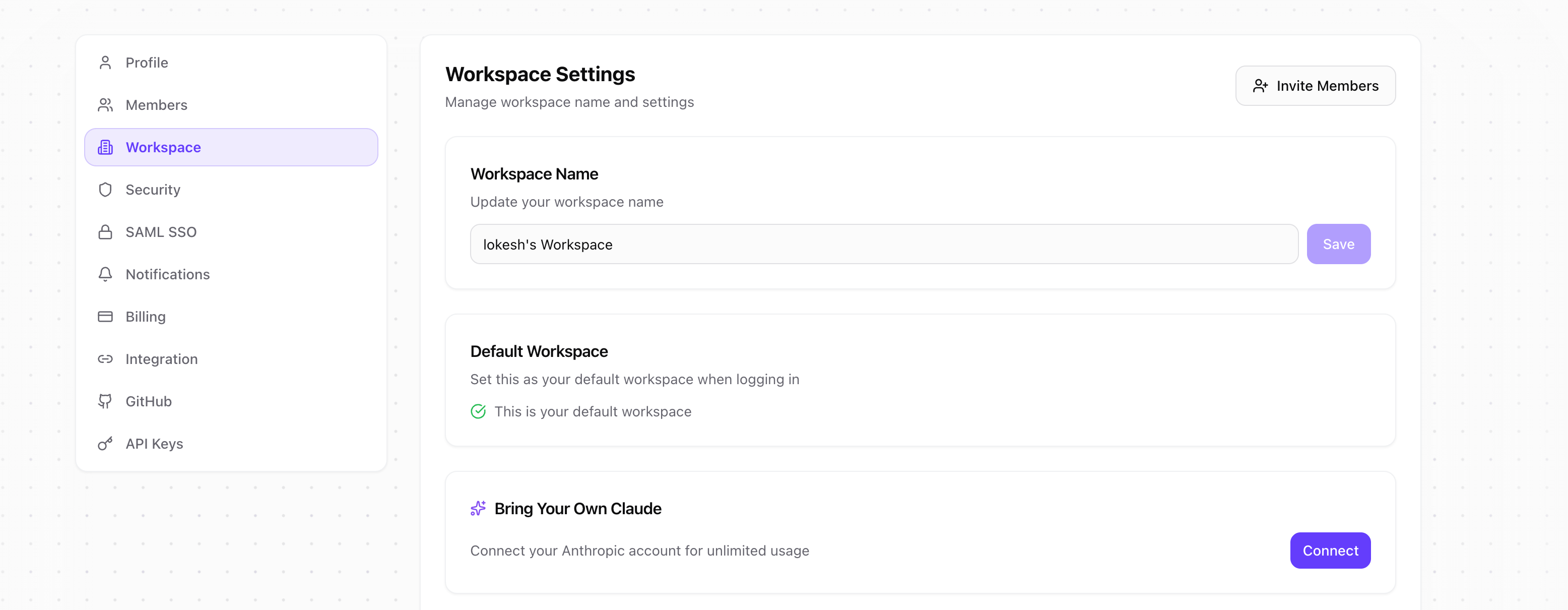 Click **Connect** to open the connection modal. You'll see two options:
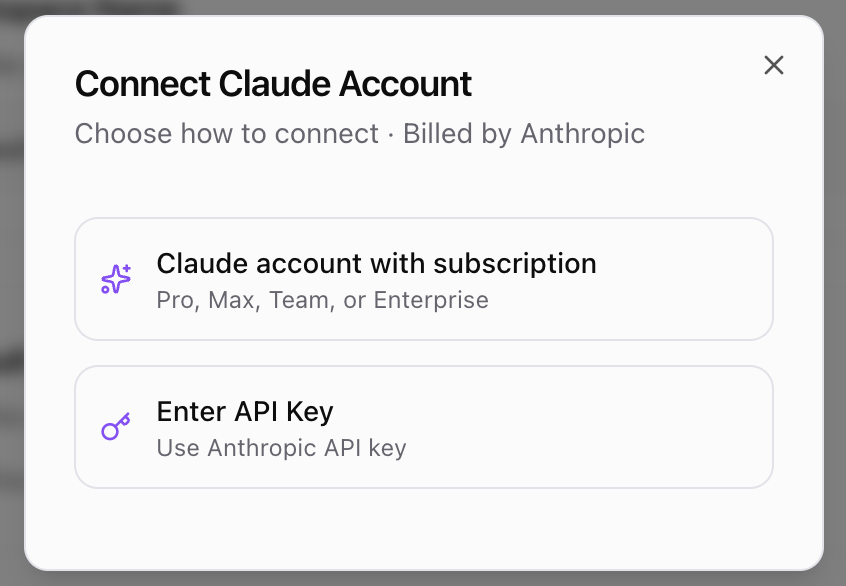 ### Option 1: Claude Subscription (Recommended)
Best for users with an active Claude Pro, Max, Team, or Enterprise subscription.
1. Click **Claude account with subscription**
2. Click **Open authorization page** to go to claude.ai
### Option 1: Claude Subscription (Recommended)
Best for users with an active Claude Pro, Max, Team, or Enterprise subscription.
1. Click **Claude account with subscription**
2. Click **Open authorization page** to go to claude.ai
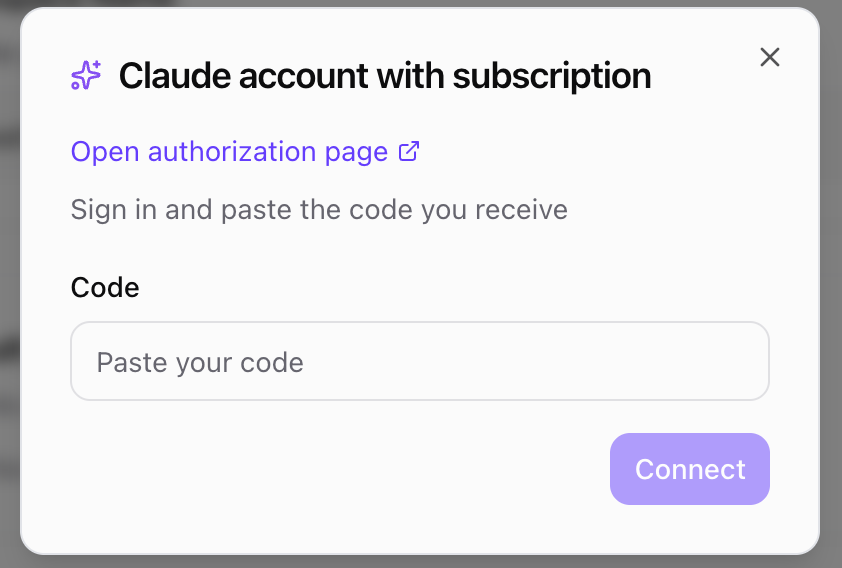 3. Sign in to your Claude account if prompted
4. Authorize OptiDev to access your account
5. Copy the authentication code shown on screen
3. Sign in to your Claude account if prompted
4. Authorize OptiDev to access your account
5. Copy the authentication code shown on screen
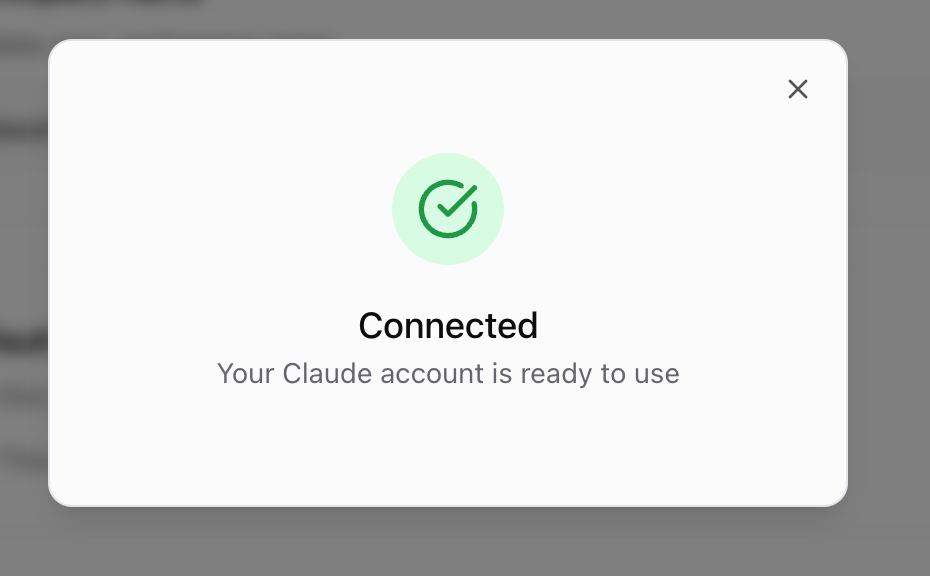
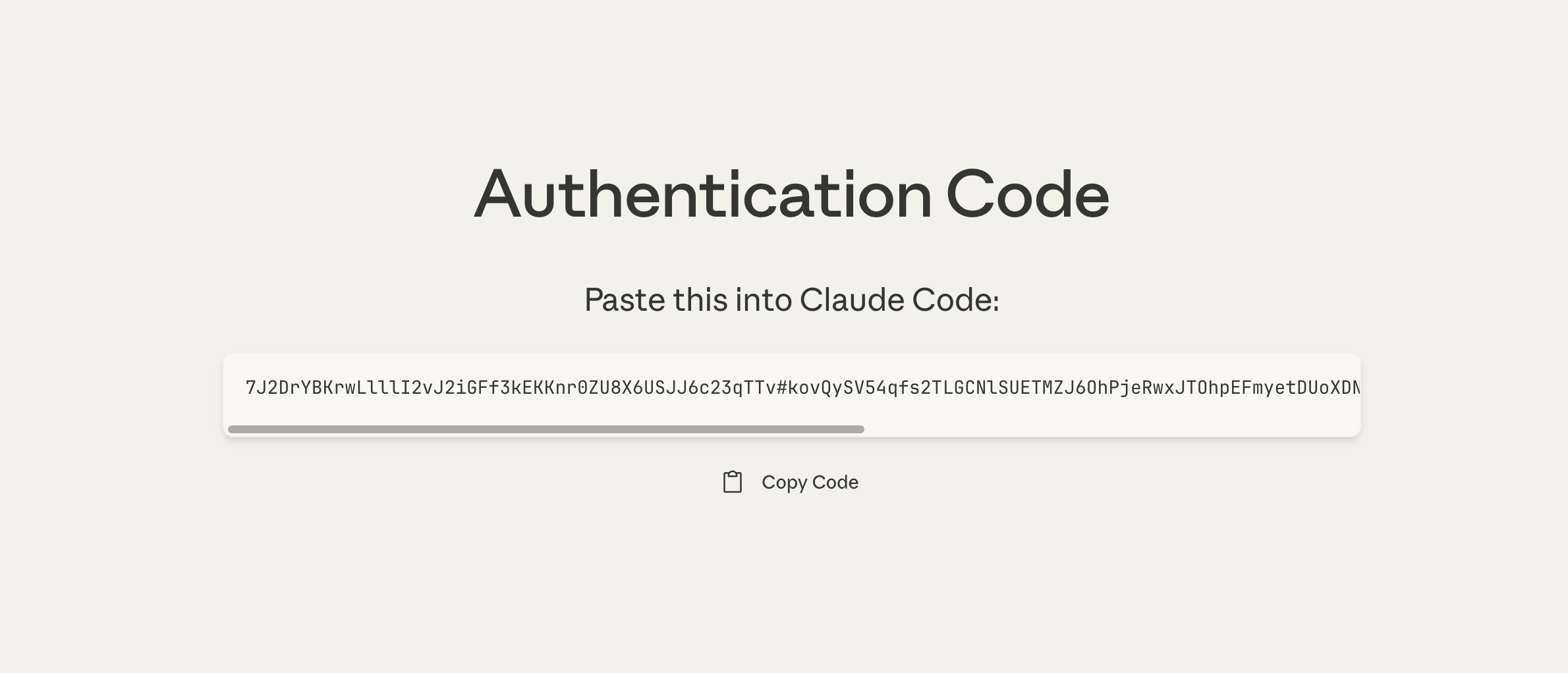 6. Paste the code back in OptiDev and click **Connect**
 ### Option 2: API Key
Best for developers with an Anthropic API account.
1. Click **Enter API Key**
2. Go to [console.anthropic.com/settings/keys](https://console.anthropic.com/settings/keys) to create or copy a key
### Option 2: API Key
Best for developers with an Anthropic API account.
1. Click **Enter API Key**
2. Go to [console.anthropic.com/settings/keys](https://console.anthropic.com/settings/keys) to create or copy a key
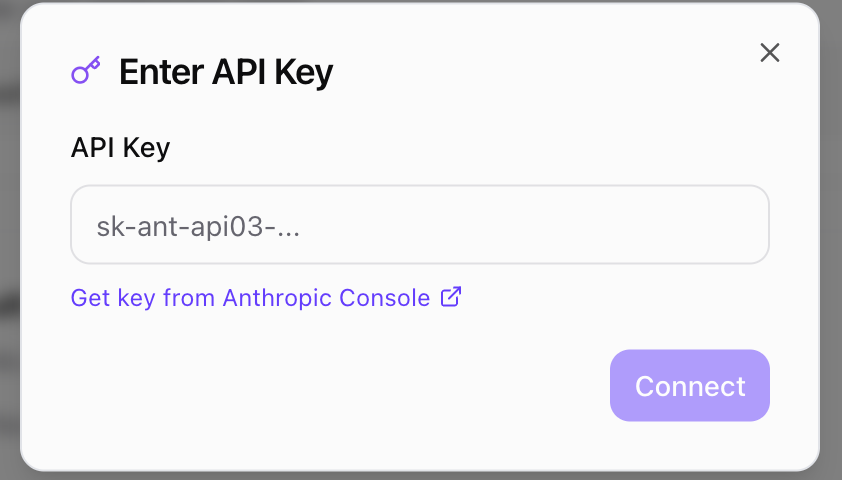 3. Paste your API key (starts with `sk-ant-api03-...`)
4. Click **Connect**
Create a dedicated API key for OptiDev so you can revoke it without affecting other integrations.
***
## Viewing Connection Status
Once connected, the BYOC card shows your connection status:
3. Paste your API key (starts with `sk-ant-api03-...`)
4. Click **Connect**
Create a dedicated API key for OptiDev so you can revoke it without affecting other integrations.
***
## Viewing Connection Status
Once connected, the BYOC card shows your connection status:
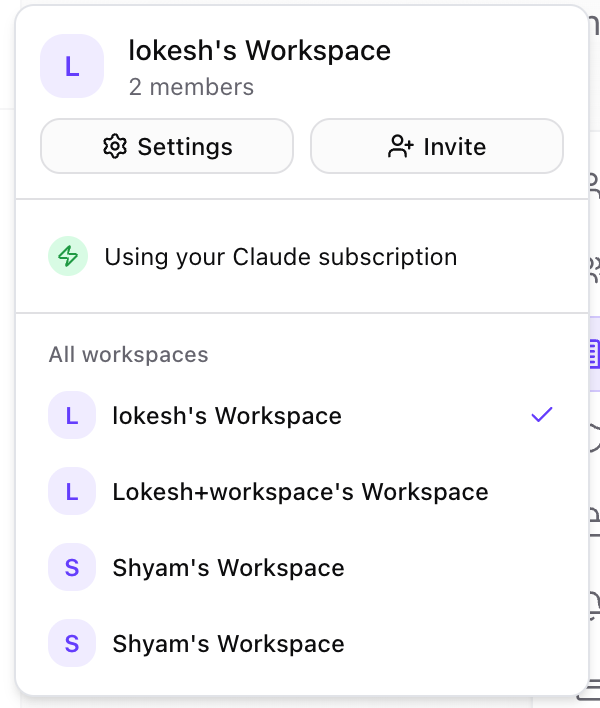
 You'll also see this status in the workspace selector dropdown:
 ***
## Disconnecting
To stop using your personal account and return to workspace credits:
1. Go to **Settings** → **Workspace**
2. Find the **Bring Your Own Claude** card
3. Click **Disconnect**
Your connection is removed immediately. OptiDev Agent will use workspace credits for future requests.
***
## If Your Session Expires
OAuth tokens refresh automatically in the background. However, if your session becomes invalid (e.g., you revoke access from Anthropic or the refresh token expires), you'll see a notification:
***
## Disconnecting
To stop using your personal account and return to workspace credits:
1. Go to **Settings** → **Workspace**
2. Find the **Bring Your Own Claude** card
3. Click **Disconnect**
Your connection is removed immediately. OptiDev Agent will use workspace credits for future requests.
***
## If Your Session Expires
OAuth tokens refresh automatically in the background. However, if your session becomes invalid (e.g., you revoke access from Anthropic or the refresh token expires), you'll see a notification:
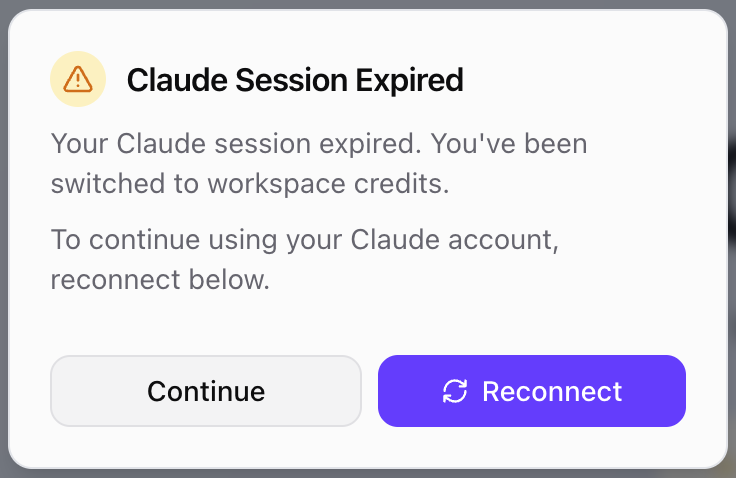 When this happens:
* OptiDev automatically switches to using workspace credits
* Your work is not interrupted
* Click **Reconnect** to go to Settings and reconnect your account
***
## FAQ
### Will I be charged twice?
No. When BYOC is connected, all Claude AI usage is billed to your Anthropic account. Workspace credits are not used.
### What happens if I run out of API credits?
If your Anthropic API account has insufficient credits, requests will fail. You can either:
* Add credits to your Anthropic account
* Disconnect BYOC to use workspace credits instead
### Can I switch between API key and subscription?
Yes. Disconnect your current connection first, then reconnect using the other method.
### Is my API key secure?
Yes. Your credentials are encrypted using AES-256-GCM and stored securely. API keys are never logged or displayed in full.
When this happens:
* OptiDev automatically switches to using workspace credits
* Your work is not interrupted
* Click **Reconnect** to go to Settings and reconnect your account
***
## FAQ
### Will I be charged twice?
No. When BYOC is connected, all Claude AI usage is billed to your Anthropic account. Workspace credits are not used.
### What happens if I run out of API credits?
If your Anthropic API account has insufficient credits, requests will fail. You can either:
* Add credits to your Anthropic account
* Disconnect BYOC to use workspace credits instead
### Can I switch between API key and subscription?
Yes. Disconnect your current connection first, then reconnect using the other method.
### Is my API key secure?
Yes. Your credentials are encrypted using AES-256-GCM and stored securely. API keys are never logged or displayed in full.